



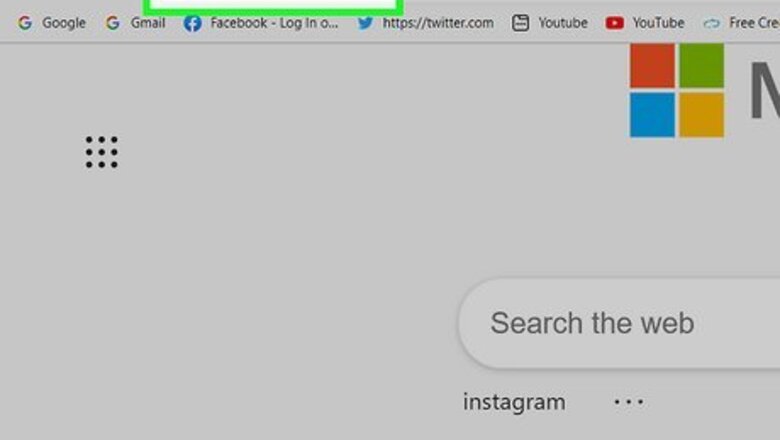

Unliking from the Pages Listing

Go to https://facebook.com and log in. You can use any web browser to do this. You can also use the mobile app to unlike pages. When the left panel is mentioned, you'll need to tap the three-line menu icon to see it.
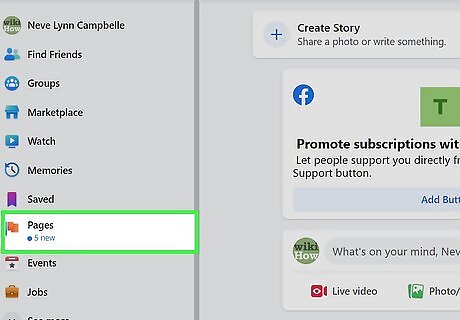
Click Pages. It's in the panel on the left side of the screen. For anyone using an Android or iOS mobile device, tap the three-lined menu icon, then tap Pages.
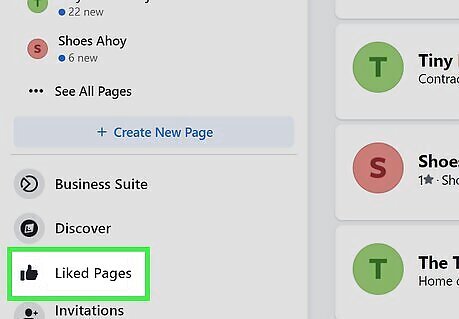
Click or tap Liked Pages. It's next to a thumbs-up icon at either the left side of the page for browsers or the top of the screen for those using the mobile app. All the Pages you've liked will appear.
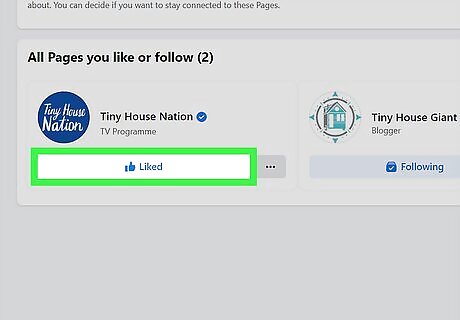
Click or tap Liked. The button will change from blue to grey to indicate that you've unliked that Page. When you unlike a Page, it will no longer appear on your Newsfeed.
Unliking from Your Newsfeed on a Computer
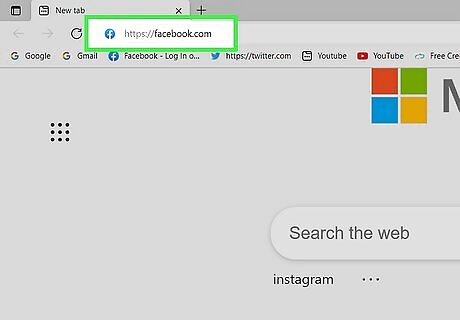
Go to https://facebook.com and log in. You can use any web browser to do this.
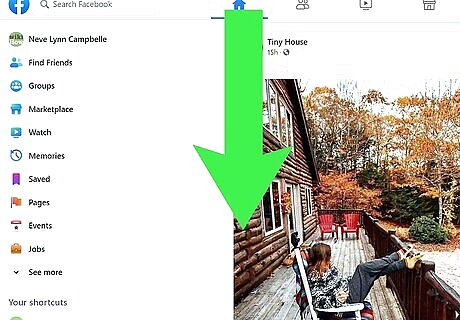
Scroll through your Newsfeed. Unlike the other method, this one allows you to see content from that Page before unliking it.

Hover your mouse over the Page's name. It's usually in the top right corner of their post. A window will appear that summarizes information about that Page.
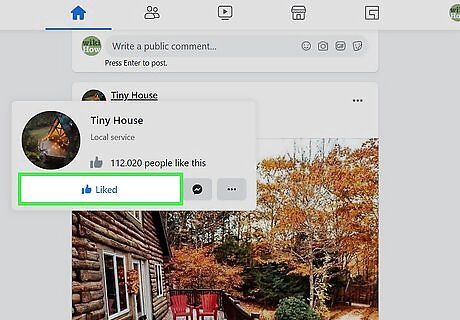
Click Liked. It will change from a blue "Liked" to a grey "Like" button. Unliking a Page will remove it from appearing in your Newsfeed.
Unliking from Your Newsfeed on Mobile
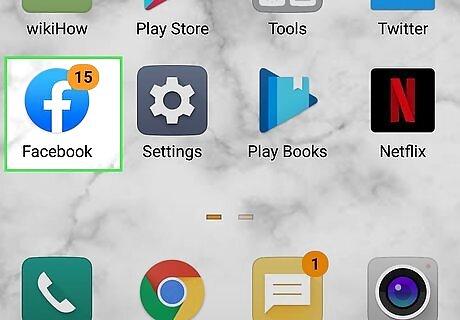
Open Facebook. This app icon looks like a lowercase "f" on a light blue background. You can find this app on one of your home screens, in the app drawer, or by searching.

Scroll through your Newsfeed. Unlike the other method, this one allows you to see content from that Page before unliking it.
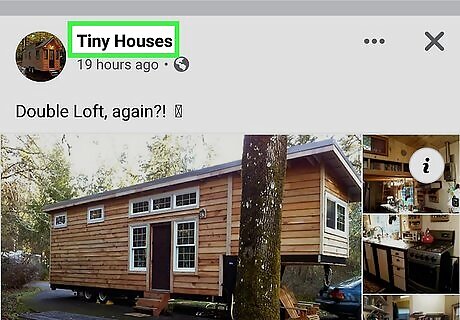
Tap the Page's name. You'll find it in the top right corner of the post and will be redirected to their Page.
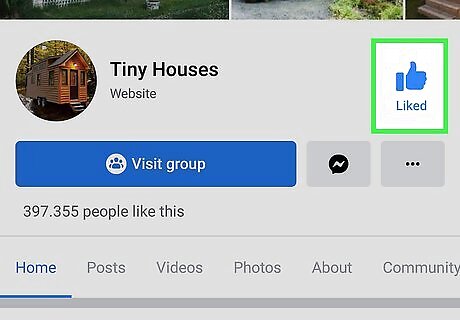
Tap Android 7 Thumbs Up. The thumbs-up icon is on the right side of your screen under the page's cover photo.
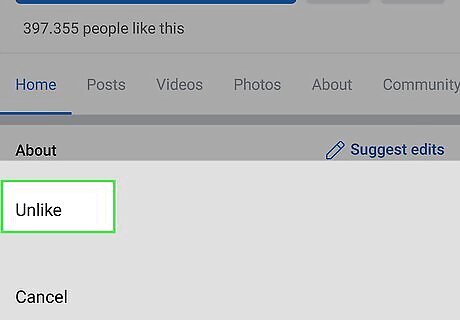
Tap Unlike. It's usually the first option in the menu that slides up from the bottom of your screen. The thumbs-up icon will change from blue to grey to indicate that you've unliked the Page.









Comments
0 comment