



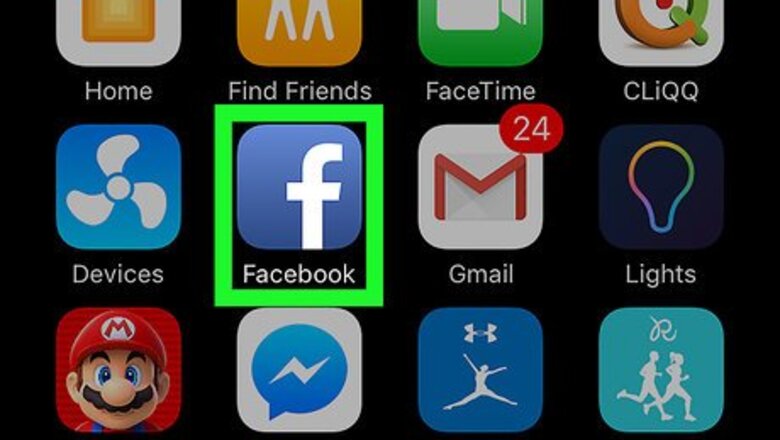

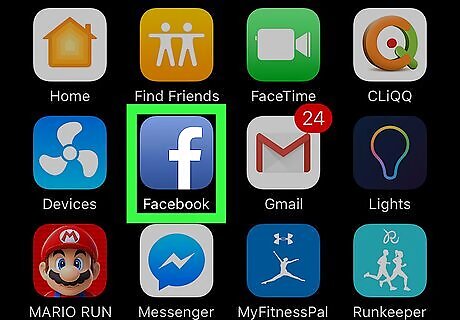
Open Facebook. It's the blue icon with a white “f” on your home screen. If you haven't yet signed in to Facebook, type your email address/phone number and password into the blanks, then tap Log In.

Find a Suggested Page in your news feed. These are advertisements in your news feed that say “Suggested Page” above the page name. You can also use this method to hide ads labeled “Suggested Post” or “Suggested App.”
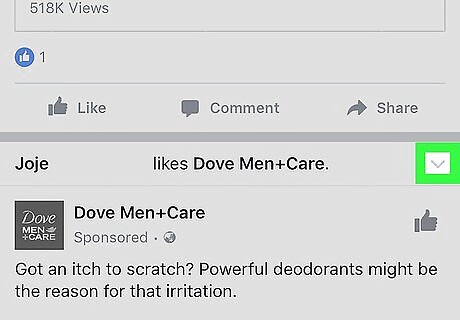
Tap the downward-pointing arrow. It's at the top-right corner of the advertisement.
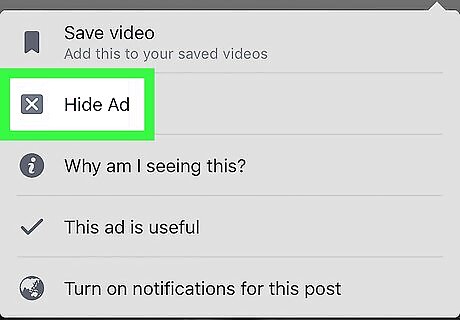
Select Hide Ad. The button text may appear as Hide Advert in some locales. This hides the suggested page from your news feed, as well as other advertisements deemed similar by Facebook.
To hide all suggested posts and pages from this advertiser, tap the “Hide all ads from










Comments
0 comment